Link your Jellyseerr account
Connect Jellyseerr to Phyn so the app can recognize your Jellyseerr account for supported integration features.
What this unlocks: After Jellyseerr is linked, Phyn can use your Jellyseerr account where supported. Your server and Jellyseerr permissions still decide which integration features are available.
Before you start
You need:
- A working Jellyseerr server that you can reach from the device running Phyn.
- A Jellyseerr user account.
- The Jellyseerr server address, such as
https://requests.example.com. - Your Jellyseerr username and password, or the Jellyfin login details accepted by your Jellyseerr server.
If your Jellyseerr server is only available on your home network, connect your device to that network before linking the account.
Tip: Use the Jellyseerr address that opens in a browser on the same device. If you use a reverse proxy, that is usually the public
https://address for Jellyseerr, not the Jellyfin server address.
Link Jellyseerr in Phyn
- Open Phyn.
- Open the account menu.
- Select
Settings. - Scroll to
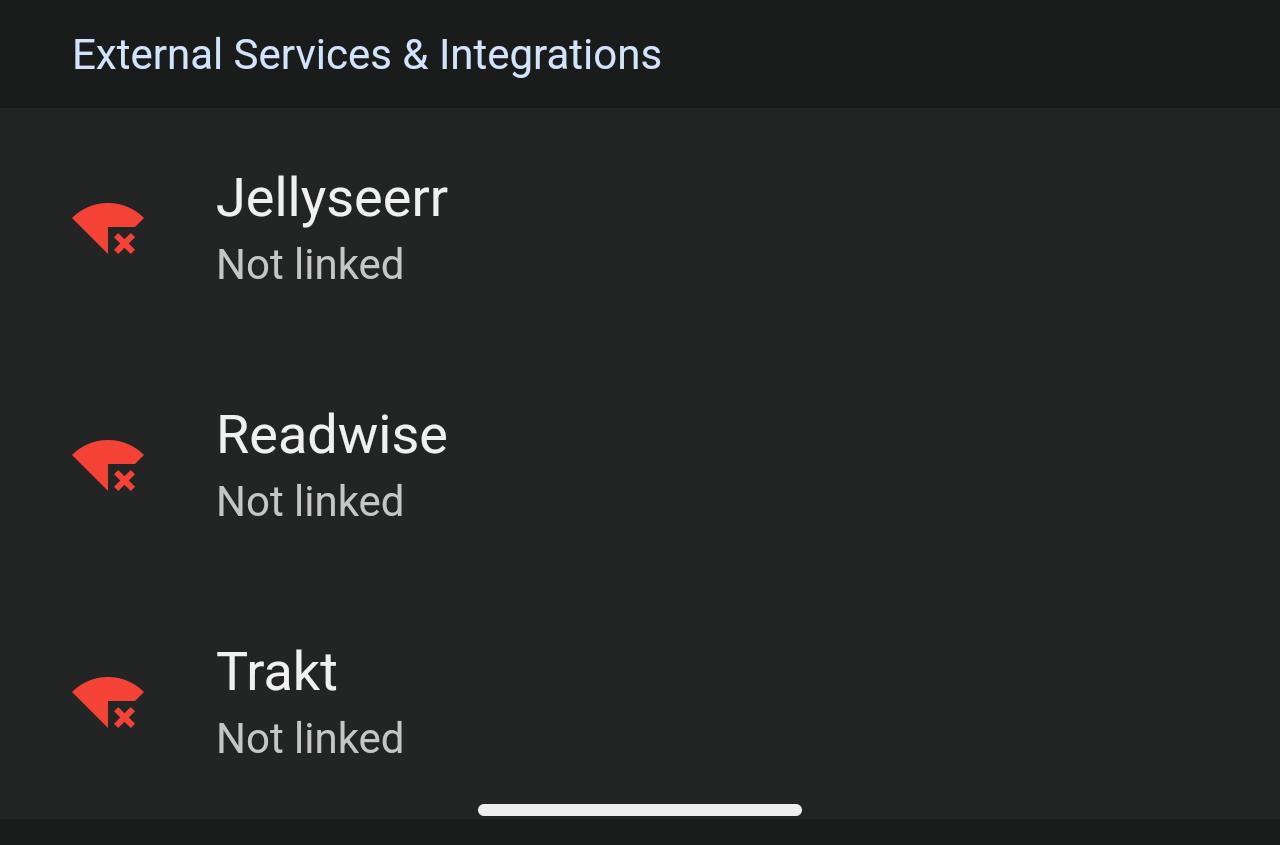
External Services & Integrations. - Select
Jellyseerr. - Choose the
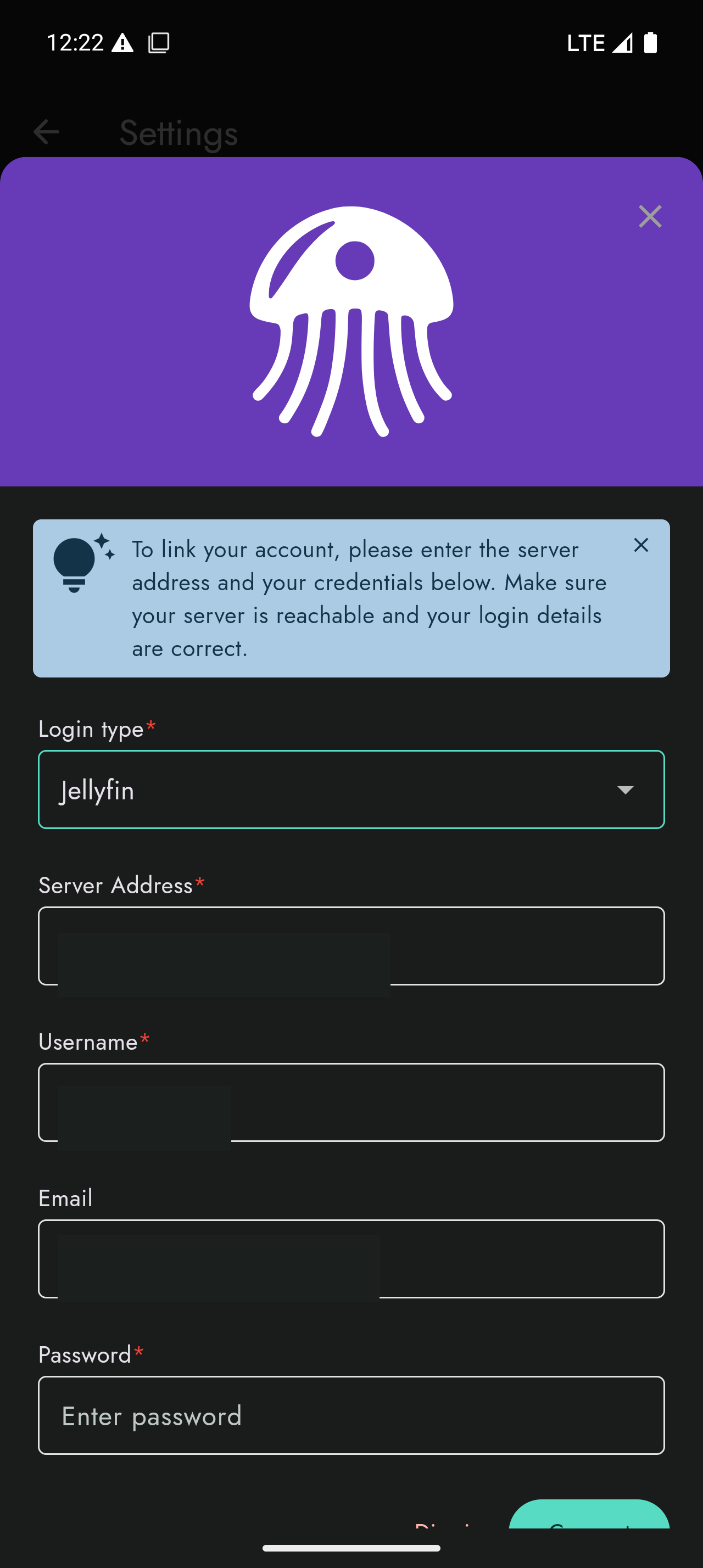
Login typeyour Jellyseerr server expects. The default option shown in Phyn isJellyfin. - Enter your Jellyseerr
Server Address. - Enter your
Username. - Enter your
Emailonly if your Jellyseerr setup requires email-based login. - Enter your
Password. - Select
Connect.
Login type hint: Choose
Jellyfinif your Jellyseerr server signs users in through Jellyfin. Choose a local Jellyseerr login only if your server admin created a separate Jellyseerr account for you.
Expected result
After Phyn connects successfully, Jellyseerr should no longer show as Not linked in External Services & Integrations.
You can then use Jellyseerr-backed areas in Phyn where they are available for your server and account.
If Phyn cannot connect
If this happens, check the server address first. The address should include http:// or https://, and it should point to the Jellyseerr web app, not your Jellyfin server unless both services are intentionally served from the same host.
Do not share secrets: If you contact support about Jellyseerr linking, include the error message and login type, but do not send your password, API keys, invite links, or private server URLs unless support specifically asks for a redacted example.
If the server address is correct, try opening the same address in a browser on the same device. If the browser cannot reach Jellyseerr, Phyn will not be able to reach it either.
If your login details are rejected, confirm whether your Jellyseerr server uses Jellyfin authentication, local Jellyseerr users, or another login method. Then return to the Jellyseerr linking screen and choose the matching Login type.
If you are outside your home network, confirm that Jellyseerr is exposed through your reverse proxy, VPN, or remote access setup. A local-only address such as a private IP or .local hostname may not work away from home.