Watch 3D movies and TV episodes in Phyn on Meta Quest by entering immersive mode, choosing your 3D video, and matching the display format to the file.
Before you start
- Connect Phyn to your Jellyfin server on your Quest.
- Make sure the movie or episode is available as a 3D video file.
- Check its 3D format, such as full side-by-side (FSBS) or half side-by-side (HSBS). The version name or filename may include this information.
Selecting a 3D format does not convert a regular 2D video into 3D. You need a 3D version of the movie or episode.
1. Enter immersive mode
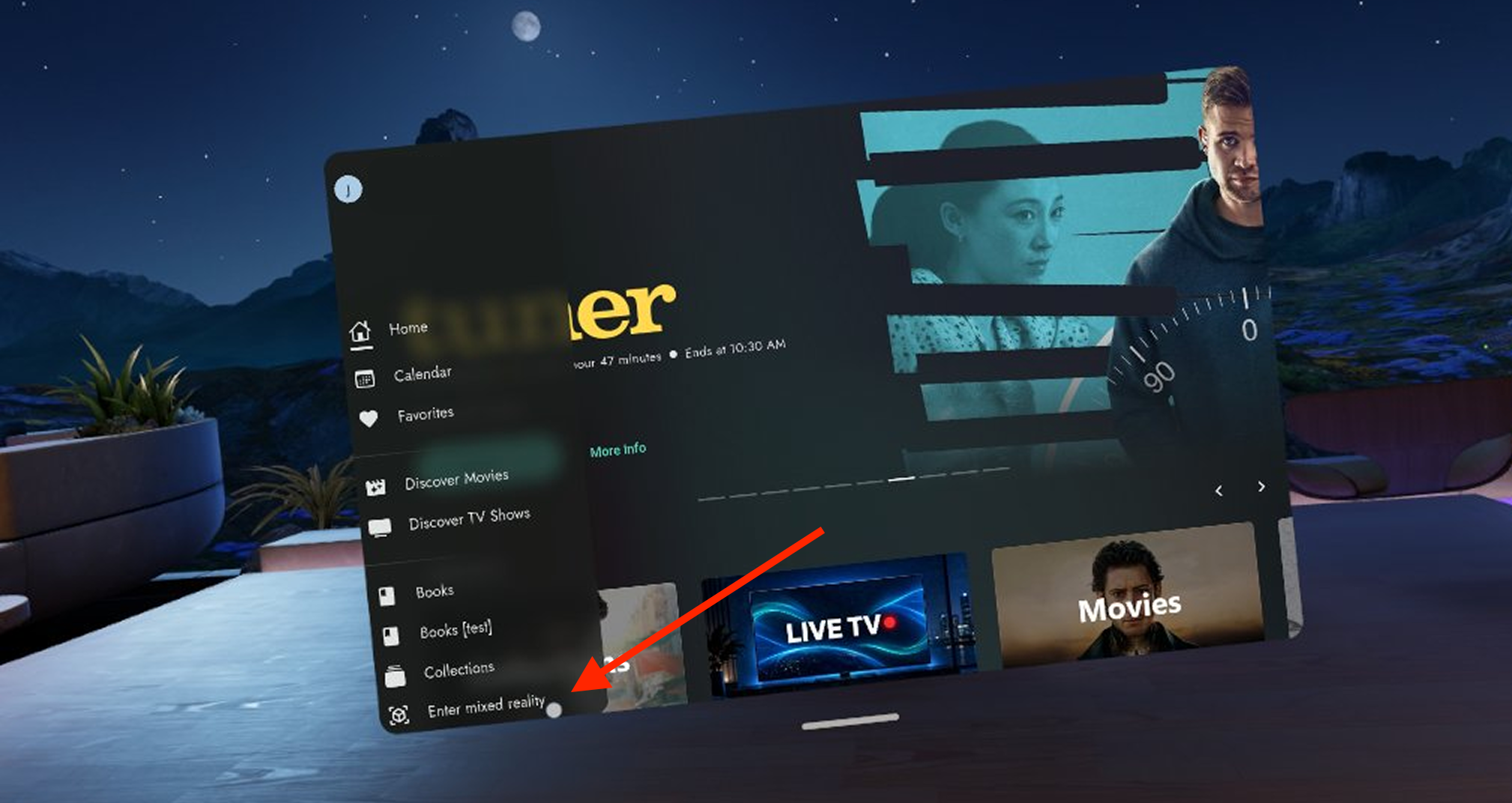
Open Phyn's navigation menu and select Enter mixed reality to enter immersive mode.
2. Find your movie or episode
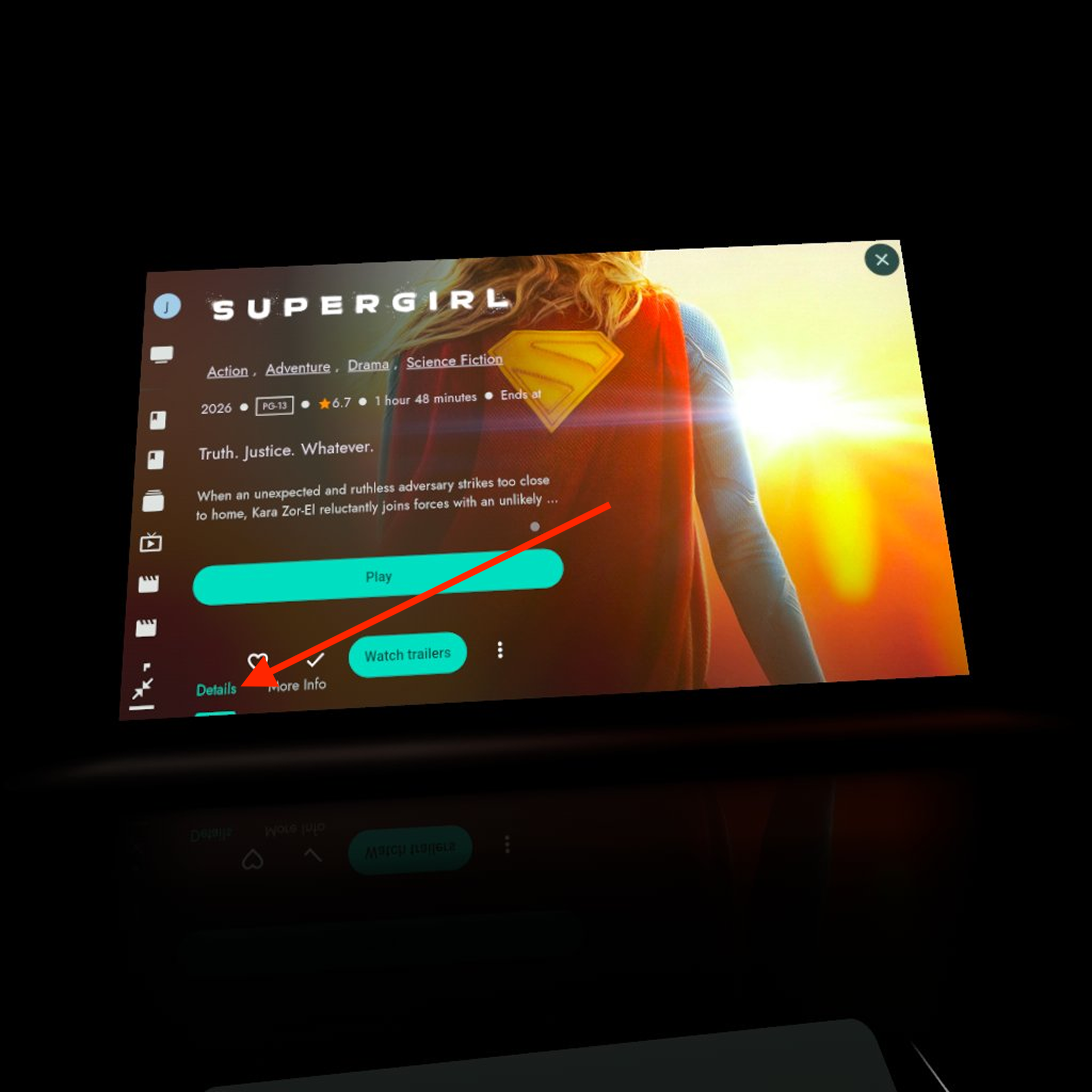
Browse your library and open the movie you want to watch. For a TV show, open the episode you want to play.
Scroll down on its page to see the Details section and playback options.
3. Choose the 3D version and start playback
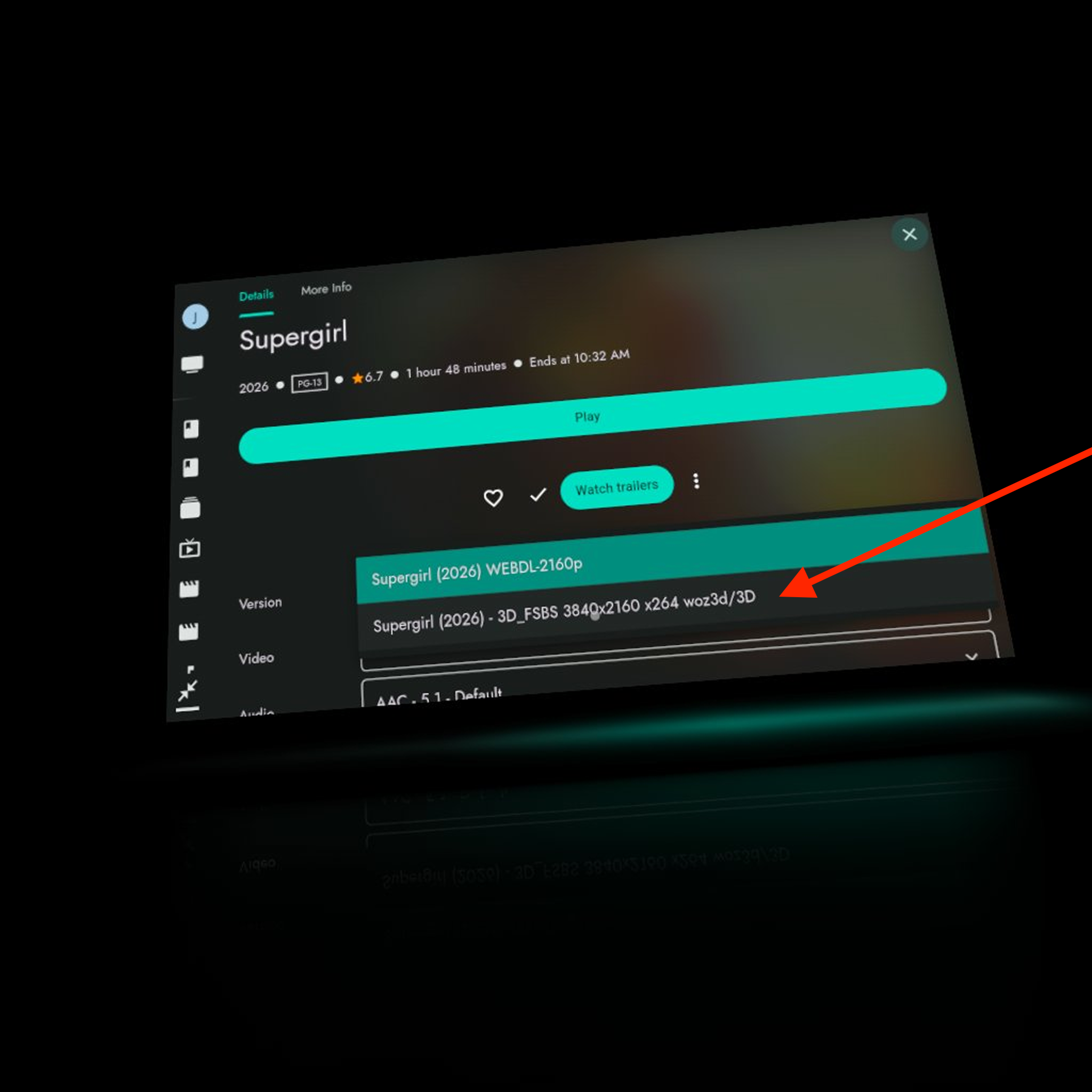
If the title has multiple versions, open Version and select the 3D file. Check the version name for a format label such as FSBS or HSBS.
If there is only one version, make sure it is the 3D file you intend to watch. Select Play.
4. Show the immersive control panel
While the video is playing, point your controller down to reveal the immersive control panel, or press B on the right controller to show it. Press B again to hide it.
Look downward to see the panel below the video screen. You can grab the panel and move it to a position that is comfortable to reach and view.
5. Choose the best 3D format
In the control panel, open Display and find 3D format. Start with the option listed in your video's version name or filename:
| Option | Video format |
|---|---|
| 2D | Regular video; 3D display is off |
| FSBS | Full side-by-side |
| HSBS | Half side-by-side |
| HTAB | Half top-and-bottom |
| FTAB | Full top-and-bottom |
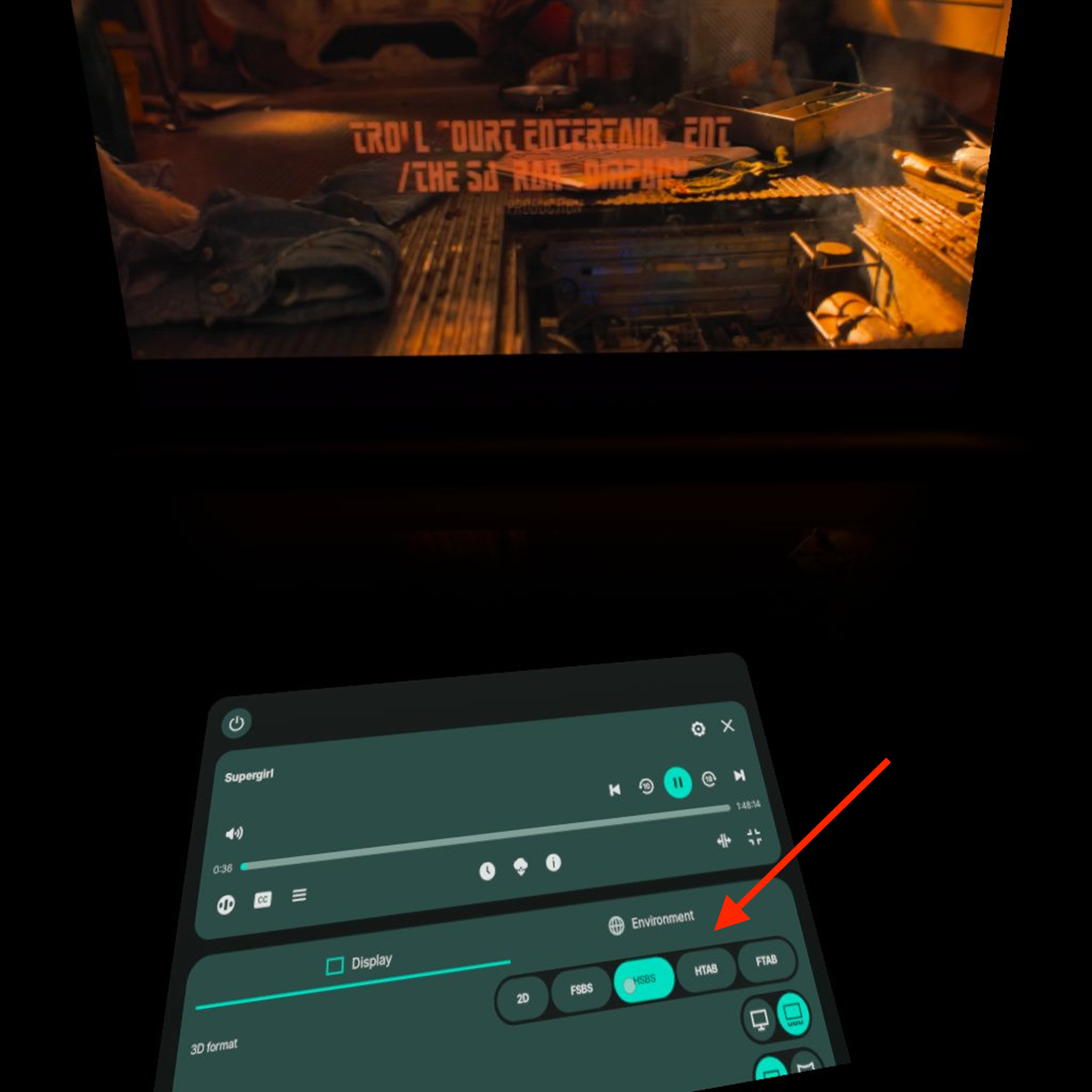
The half/full SBS label on a movie does not always match the setting that looks best during playback. If FSBS looks stretched, squeezed, or otherwise incorrect, try HSBS, and vice versa. Choose whichever gives you the clearest 3D picture with natural proportions, even if it differs from the filename. The screenshots above show an FSBS-labeled version and HSBS selected in the controls.
The picture should now appear as one 3D image with depth when viewed through the headset.
If something does not look right
- You see two images side by side or one above the other: check that 3D format matches the file instead of 2D.
- The picture looks stretched or squeezed: for side-by-side video, switch between FSBS and HSBS and keep whichever looks best. The filename's half/full label may not match the best display setting.
- You cannot find the control panel: make sure you have entered immersive mode, then look downward and point your controller below the video screen, or press B on the right controller to reveal it. You can grab and reposition the panel once it is visible.
- There is no 3D version to select: check that your Jellyfin library contains a 3D copy of the movie or episode. Changing the display format cannot add depth to a 2D file.
- You want to watch a regular video again: select 2D under Display → 3D format.