Troubleshoot in-app notifications
Use this article when Phyn does not copy a notification URL, your Jellyfin webhook test does not arrive, or notifications stop appearing on one device.
Most notification problems come from one of four places: device permission, Phyn account entitlement, the copied webhook URL, or the Jellyfin webhook configuration.
Phyn asks you to upgrade
Generating notification URLs currently requires Phyn Premium. If selecting Notify all devices or Notify this device opens the purchase screen, upgrade, sign in with the account that owns Premium, or restore purchases before trying again.
Where to copy the URL
In Phyn, go to Settings, then find Jellyfin Notifications. Select Notify all devices or Notify this device, then select Copy URL in the prompt.
Phyn copies the notification URL to your device clipboard. It does not show the full URL on screen.
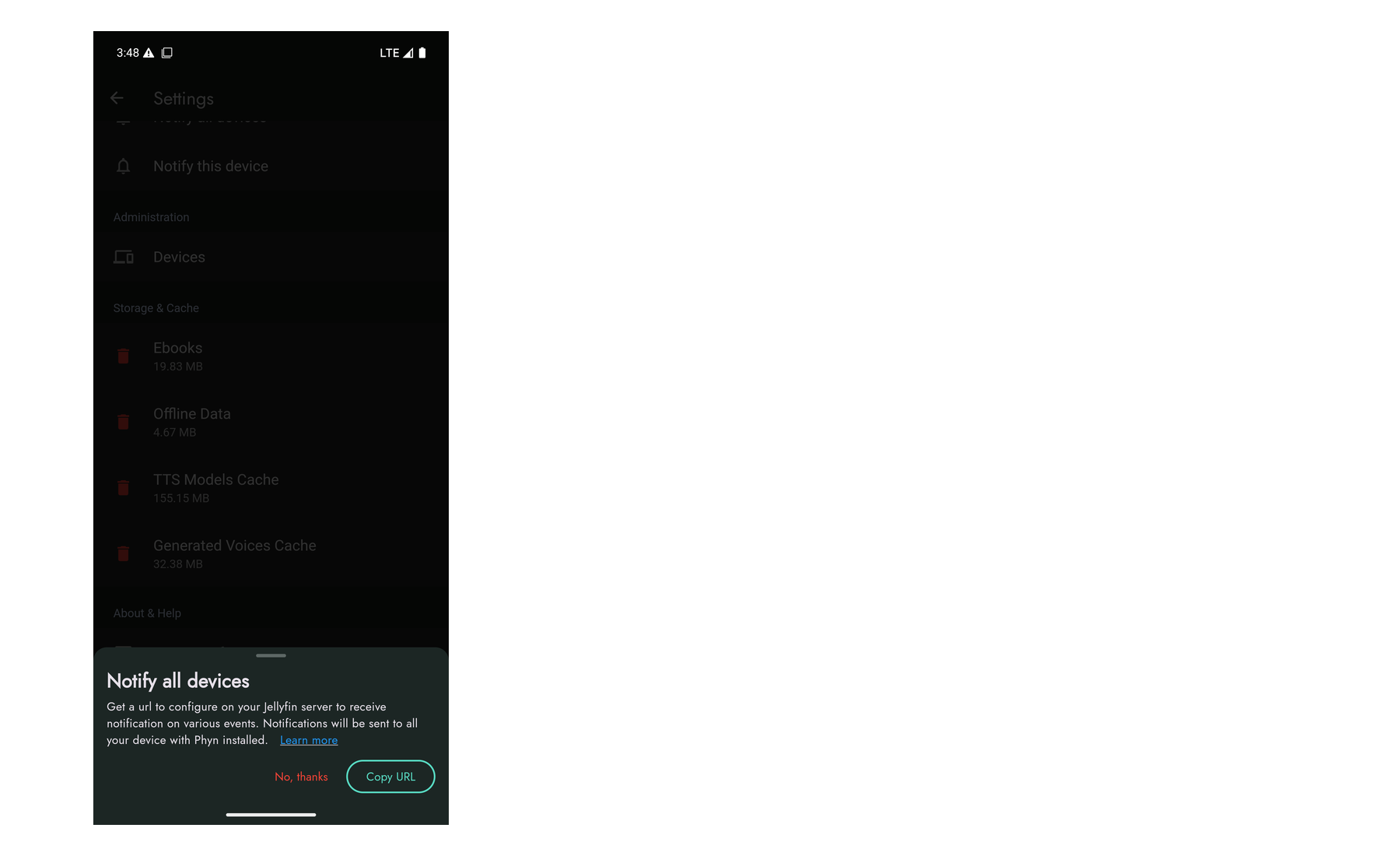
Phyn does not copy a URL
If this happens, check that:
- The device is online.
- You are signed in to Phyn.
- Phyn has notification permission on the device.
- You are using a supported platform for in-app notifications.
- You selected Copy URL after choosing Notify all devices or Notify this device.
If the same saved URL already exists, Phyn may copy the existing URL instead of generating a new one. That is expected.
Device permission: On iOS, macOS, and Android, Phyn may need notification permission before it can finish registering the device for push notifications.
Jellyfin test notifications do not arrive
If your webhook plugin has a test button but Phyn does not receive anything, check the webhook setup in Jellyfin Web:
- The webhook URL was pasted completely, with no missing characters or spaces.
- The webhook destination is enabled.
- The server can reach the internet address in the notification URL.
- The plugin is using the default webhook payload.
- At least one supported event type is selected.
- The webhook plugin settings were saved after you added the URL.
Try copying the URL from Phyn again and replacing the webhook URL in Jellyfin. This helps when the wrong device URL was pasted or an older URL was reused by mistake.
Notifications arrive on the wrong device
If the notification appears on more devices than expected, you may have used Notify all devices. Use Notify this device when only one device should receive the notification, then update the webhook URL in Jellyfin.
If the notification appears on only one device but you expected every signed-in device to receive it, copy a URL from Notify all devices and use that URL in the webhook destination.
Notifications used to work but stopped
Check whether anything changed recently:
- Phyn was reinstalled or signed out.
- Notification permission was turned off in system settings.
- The Jellyfin webhook plugin was updated, disabled, or removed.
- The webhook payload was customized.
- The server network, reverse proxy, firewall, or DNS setup changed.
After checking those items, copy a fresh notification URL from Phyn and update the webhook destination.
When to contact support
Contact support if Phyn cannot copy a notification URL after you have confirmed Premium, device permission, and network access. Include a short description, your platform, whether you chose Notify all devices or Notify this device, and a screenshot if there is an error message.
Do not share secrets: Do not include the full notification URL in a public message. If support needs it, send a redacted example first.